Automated Digital Check-In
Stay is enhanced to automatically check-in reservations at the configured time. Users can configure the start and end time for the check-in. When the configured time is reached, the reservations are checked in automatically when the following conditions are met:
-
Room is assigned to the reservation
-
The room assigned to the reservation is in a condition that is suitable for check-in
-
The ID proof of the guest is verified
-
A soft check-in is made for the reservation and a digital key is generated
Feature Setting
The following new feature setting has been introduced to enable users to configure the start and end time for checking in reservations automatically:
-
Name: Automated Digital Check-In
-
Value: Must be enabled
-
Comments: License is not required
Permissions
The following new permissions have been introduced to allow users to view and modify the fields in the Automated Digital Check-In section in the Digital Check-In & Out tab of the Interfaces Setup screen (Settings ➜ Interfaces).
|
Permission |
Description |
Roles |
|---|---|---|
|
Stay_ReadAutoDigitalCheckinTime |
To view the Automated Check-In Start Time and Automated Check-In End Time configured. |
This permission is provided to the following roles by default:
|
|
Stay_WriteAutoDigitalCheckinTime |
To modify the Enable Digital Check-In Time Settings checkbox, Automated Check-In Start Time, and Automated Check-In End Time fields. |
This permission is provided to the following roles by default:
|
|
Stay_StartStopAutoDigitalCheckinTime |
To modify the Manual Automated Check-In Process field to start/stop the automated check-in process manually. |
This permission is provided to the following roles by default:
|
|
Stay_DisableAutoDigitalCheckinTime |
To modify the Manual Automated Check-In Process field to disable the automated check-in process. |
This permission is provided to the following roles by default:
|
Configuring Automated Digital Check-In Settings
When the feature setting is enabled, users can configure the values of the preferred fields in the Automated Digital Check-In section in the Digital Check-In & Out tab of the Interfaces Setup screen (Settings ➜ Interfaces). This section displays the following message: Automated digital check-in batch process will run every 15 minutes. The Automated Digital Check-In section is not displayed when the Automated Digital Check-In feature setting is disabled.
Users can configure the start and end time for automated digital check-in by enabling the Enable digital check-in time settings checkbox in the Automated Digital Check-In section. This checkbox is disabled by default. Only users with the Stay_WriteAutoDigitalCheckinTime permission can enable this checkbox. When disabled, the guest can perform digital check-in at any time. For example, if the automated digital check-in time is configured from 10AM to 5PM, and the property wants to allow digital check-in without a time limit, this checkbox must be unchecked.
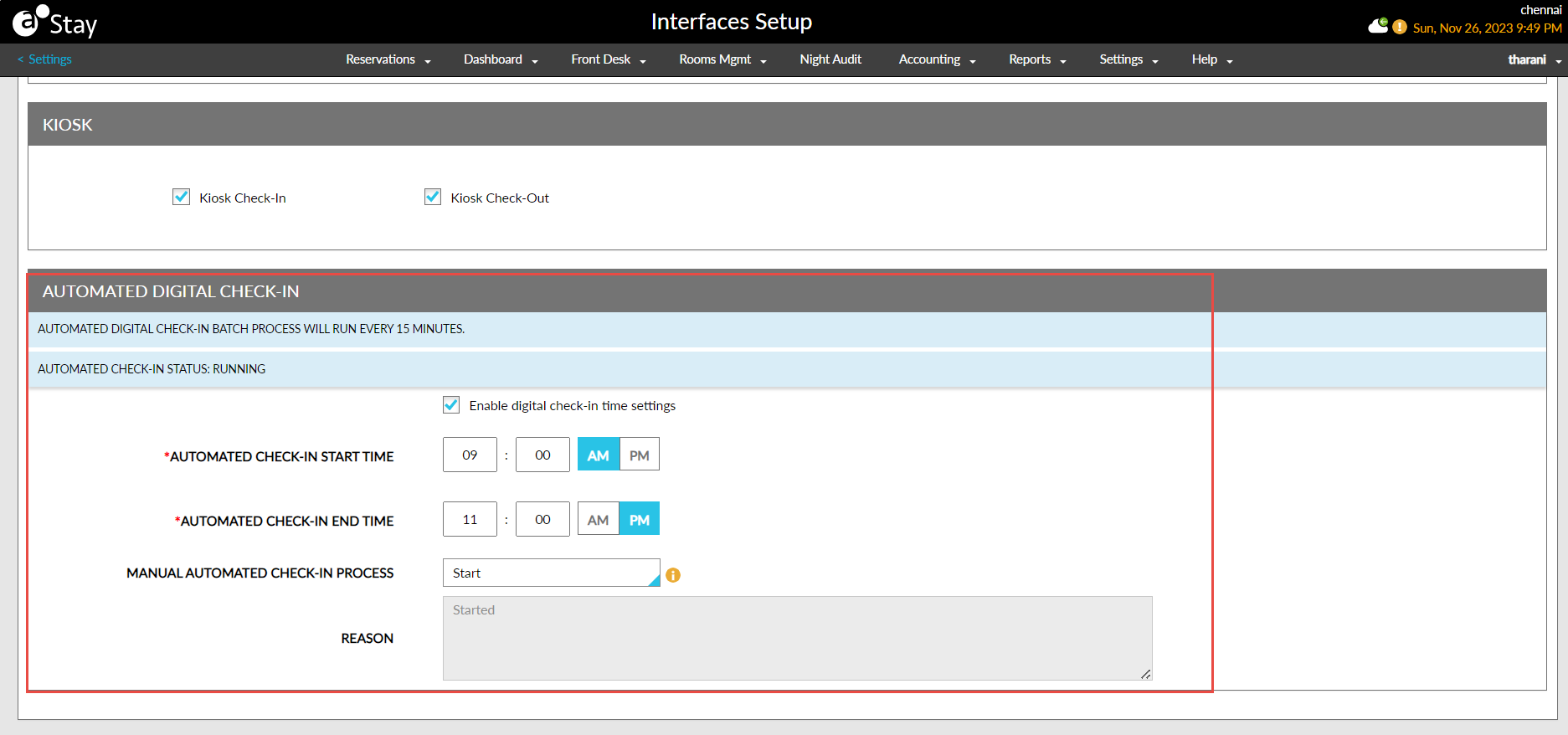
When this checkbox is selected, users can configure the start time and end time for the automated digital check-in process in the Automated Check-In Start Time and Automated Check-In End Time fields. Based on the time selected, the digital check-in process is performed. When the guest tries to perform digital check-in within the configured time frame, the reservation is checked in if the mentioned criteria are met. Only users with the Stay_WriteAutoDigitalCheckinTime permission can update the configured time.
Users can manually start/stop/disable the automated check-in process by selecting the following options in the Manual Automated Check-In Process drop-down list:
|
Option |
Description |
|---|---|
|
Start |
|
|
Stop |
|
|
Disable |
|
When the automated check-in process is stopped manually and users try to configure the start and end time without changing the value of the Manual Automated Check-In Process field, the following message is displayed: Automated check-in: Stopped. The automated check-in time will start as per the configured start time.
When the automated check-in process is disabled manually and users try to configure the start and end time without changing the value of the Manual Automated Check-In Process field, the following message is displayed: Automated check-in: Disabled: The automated check-in time will start the next business day as per the configured start and end time.
When the automated check-in process is started manually and users try to configure the start and end time without changing the value of the Manual Automated Check-In Process field, the following message is displayed: Automated check-in: Started: The automated check-in time will continue until the configured end time and the new check-in time will start the next business day.
Users can enter the reason for starting/stopping/disabling the automated digital check-in process in the Reason field. A maximum of 250 characters can be entered. When users update the values of the preferred fields and click Save, the changes are updated for users with the appropriate permission. For users without permission, the Authorize Action pop-up screen appears that prompts users to enter their credentials to validate if the user has the required permissions to update the fields.
-
If the user has the required permissions, the updates are saved successfully.
-
If the user does not have the required permission, the following message is displayed: User does not have the appropriate permissions/credentials to complete this task.
Automated Digital Check-In Process
-
When the automated digital check-in process begins at the configured start time or when the process is started by the user manually, the following message is displayed in the Automated Digital Check-In section: Automated check-in status: Running.
-
When the process stops at the configured end time or if the process is manually stopped by the user, the message, Automated check-in status: Stopped, is displayed.
-
When the automated digital check-in process is disabled by the user manually, Automated check-in status: Disabled, is displayed.
-
When an end time is not configured, the message, Automated check-in status: Running, is displayed until the next action is performed.
Based on the configured start and end time, the automated digital check-in process begins when a soft check-in is performed for the reservation and the mentioned criteria is met. Guests can check-in at the property directly and need not wait until the start time is reached to complete the check-in process. Users can also modify the configured start and end time if required. When the property date changes on date roll, the manually selected automated check-in process will be reset, and the value of the Manual Automated Check-In Process field will be reset to the value that was selected by default.
Once the Automated Digital Check-In feature setting is enabled, the automated check-in process is carried out for the entire day (24hrs) until the date roll to the next business date for the configured time frame.
An automated digital check-in icon is displayed when the property has configured the automated digital check-in feature. This icon is displayed on the menu bar before the property date, day, and time.
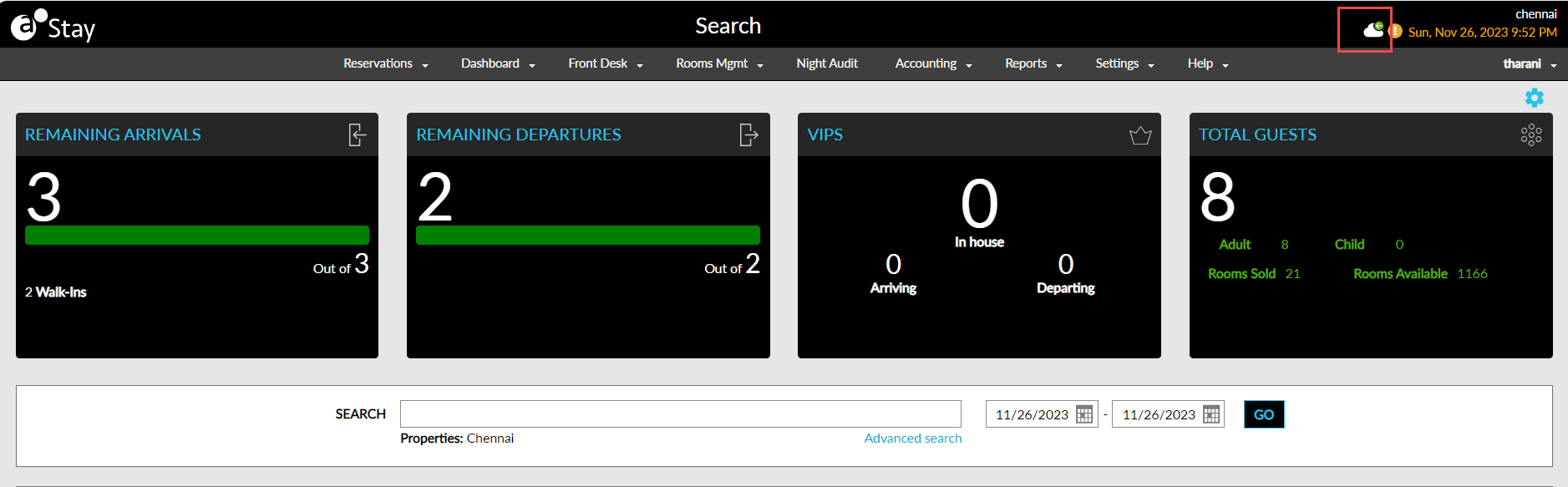
The icon color is displayed based on the automated check-in status as follows:
-
If the automated check-in process has started, the icon is displayed in green color, and when users hover over the icon, the following message is displayed: Automated check-in: Running.
-
If the automated check-in is stopped or disabled, the icon is displayed in red color, and when users hover over the icon, the following message is displayed: Automated check-in: Stopped or Automated check-in: Disabled.
-
If the automated check-in process ends at the configured time, the icon is displayed in grey color, and when users hover over the icon, the following message is displayed: Automated check-in: Not Running.
This icon is not displayed when the automated check-in process feature is not configured for the property. When the feature setting is enabled but the start and end time is not configured, the icon is displayed in blue colour and when users hover over the icon, the following message is displayed: Automated check-in: Active.
A record for the automated check-in process performed is created in the Audit Log screen under the Entity Type, Automated Digital Check-In. Logs are created for the following actions that displays the username, date, and time:
-
When the automated check-in start time is added/ updated.
-
When the automated check-in end time is added/ updated.
-
When the automated check-in time is manually started with a reason defined.
-
When the automated check-in time is manually stopped with a reason defined.
-
When the automated check-in time is manually disabled with a reason defined.
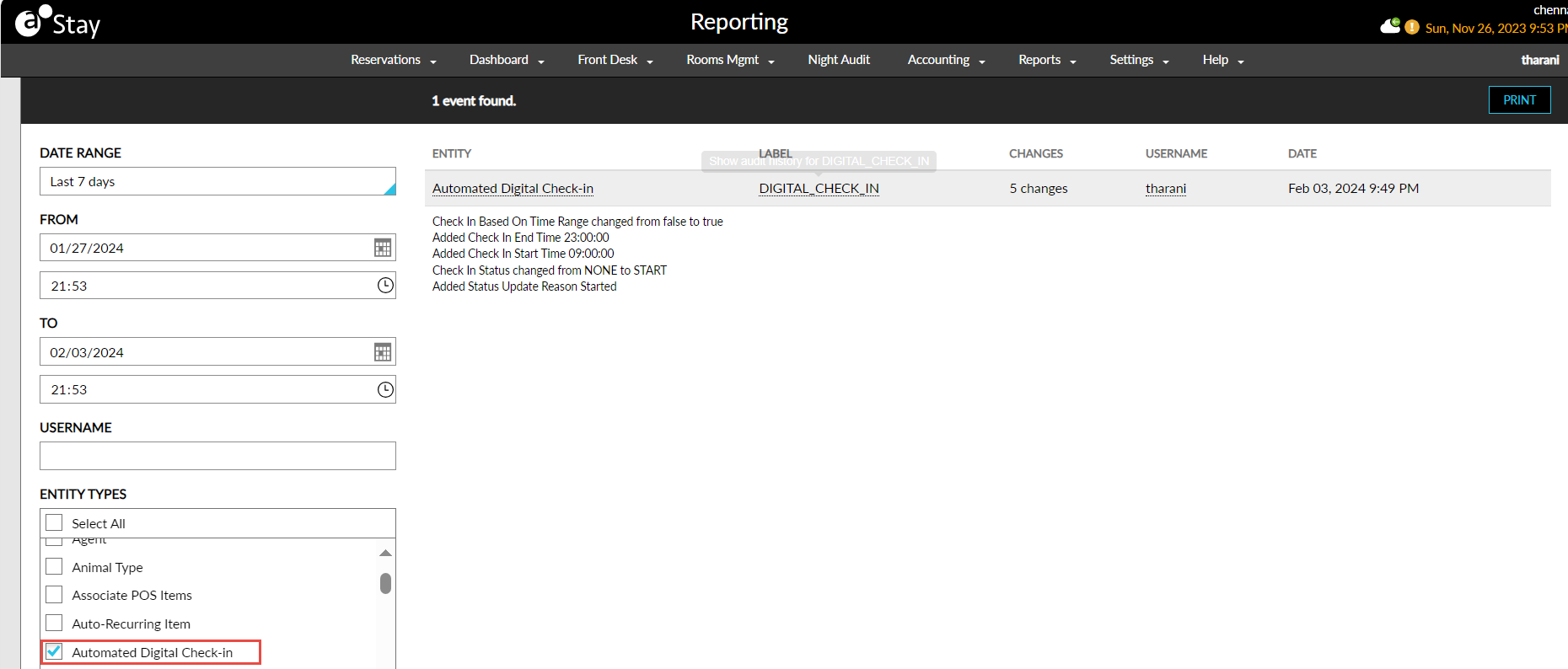
To support this enhancement, the following changes have been made:
-
A new section, Automated Digital Check-In, has been added to the Digital Check-In & Out tab of the Interfaces Setup screen (Settings ➜Interfaces) that allows users to configure the settings for the automated digital check-in process.
-
A new Entity Type, Automated Digital Check-In, has been added to the Audit Log screen that captures logs for the automated check-in process.